
How to Host Dynamic MTA-STS Policies for Multiple Domains with Google Cloud
DeploymentEmail TechnologyTechnical Guidance


Contents
This guide outlines how to set up MTA-STS (Mail Transfer Agent Strict Transport Security) using Google Cloud.
We will achieve this using a Cloud Run function. The function will identify the domain from the URL and serve the relevant policy file over HTTPS. One of the best features of Cloud Run is that Google automatically provisions and renews a managed SSL certificate for you.
Note: This guide uses many default values that may not be suitable to your organisation’s security posture or existing Google Cloud configuration. Take this into consideration when setting this up in your production environment.
Step 1: Create the Cloud Run function
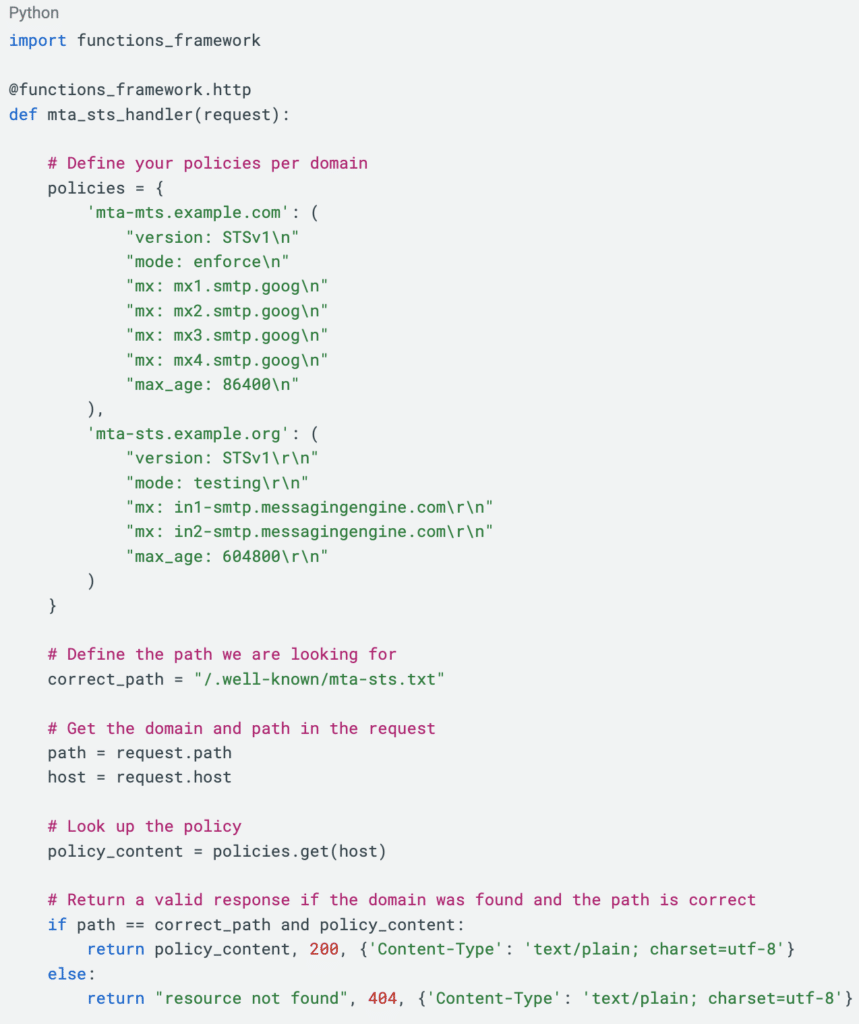
Our Cloud Run function will look at the Host header of the request to decide which policy to return.
- Navigate to the Cloud Run console. Under the Write a function heading, select Python
- Name your function e.g. mta-sts-handler
- Choose Python runtime 3.x
- Select Allow public access
- Click Create
- Paste in the following code, modify the contents of the policies dictionary to suit
- Rename the Function entry point to mta_sts_handler then click Save and redeploy
Step 2: Create domain mappings
We now need to map our domains to the serverless function we have created in the previous step.
If you have not done so already you will need to verify your domains with Google. This proves to Google that you are the domain owner, authorising the account to manage the domain name on your behalf.
- Navigate to Domain mappings, and click Add mapping
- In the dropdown Select a service to map to, choose our newly created function mta-sts-handler
- For Select a verified domain, you will be selecting a domain you have already verified, or will enter a domain to verify.
If you have not verified your domain, you will be asked to enter a TXT record at the DNS. This proves to Google that you own the domain, and authorise Google to use it.
- For Specify subdomain, enter mta-sts
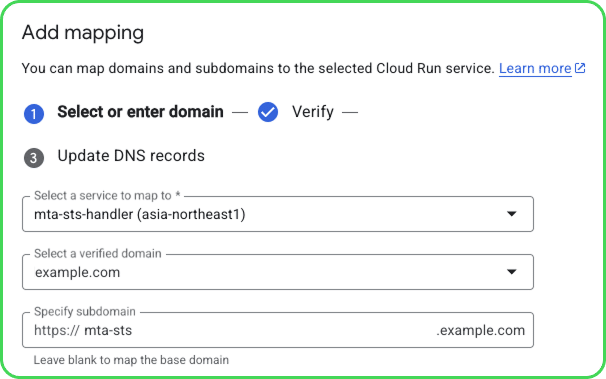
- If the domain is already verified, you will be asked to enter a CNAME record using the provided values.

You can now repeat this step for each of your domains
Confirm that your policy file is valid
Now that we have completed all steps, we need to check that everything is working as intended. There are two ways that you can do this.
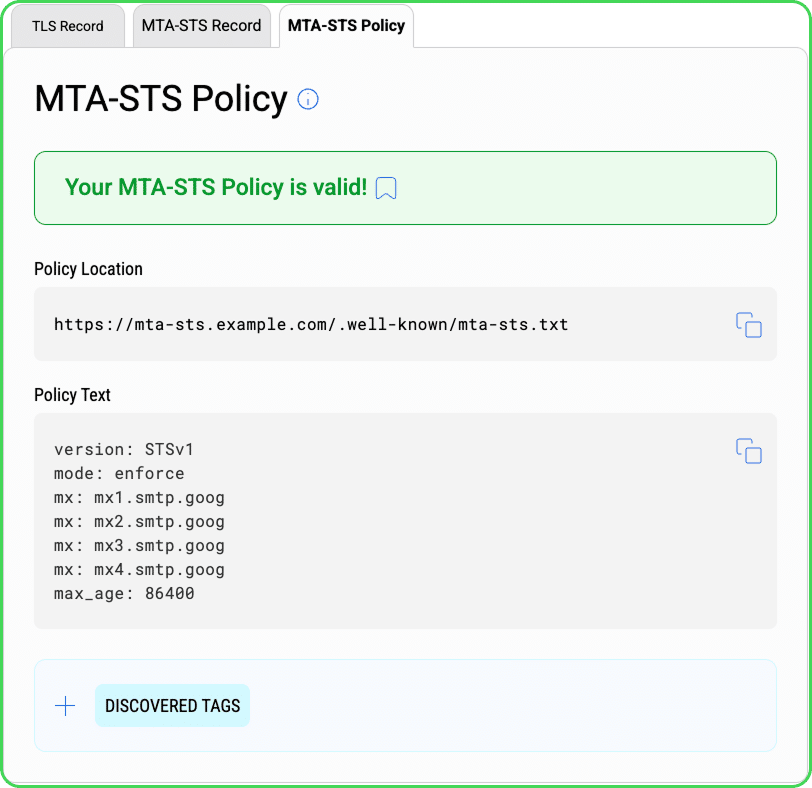
The first option is to use our TLS & MTA-STS Inspector. This will not only ensure that your policy file is being served correctly, but it will also check to ensure that your TLS and MTA-STS records are valid. The TLS & MTA-STS Inspector is available only via our DMARC Management Platform through a subscription or no-cost trial.
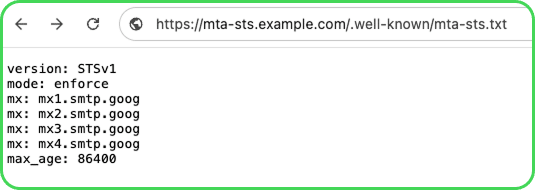
Alternatively, you can type the URL in your browser. If everything is working as it should, you will be presented with your policy file with no security warnings from your browser, as seen here:
How dmarcian can help
With a team of email security experts and a mission of making email and the internet more trustworthy through domain security, dmarcian is here to help assess an organization’s domain catalog and implement and manage email security for the long haul. You can register for a free trial, where our onboarding and support team will help you along the way.
Want to continue the conversation? Head over to the dmarcian Forum.
Did you like this article?

 September 16, 2026
 September 17, 2026