
How to Host Dynamic MTA-STS Policies for Multiple Domains with AWS
This guide is for people looking to set up MTA-STS (Mail Transfer Agent Strict Transport Security) and are already using AWS (Amazon Web Services) as part of their tech stack.
To achieve this we will be using the following AWS Applications:
- Lamda
- API Gateway
- Certificate Manager
- Route 53
Note: This guide uses many default values that may not be suitable to your organisation’s security posture or existing AWS configuration. Take this into consideration when setting this up in your production environment.
Step 1: Create the Lambda function
First, we need a function that acts as our policy server. When a mail server (like Gmail or Outlook) connects to mta-sts.example.com, it makes a GET request to /.well-known/mta-sts.txt.
Our Lambda function will look at the Host header of the request to decide which policy to return.
- Navigate to the Lambda console and click Create function
- Name your function e.g. mta-sts-handler
- Choose Python runtime 3.x
- Click Create function
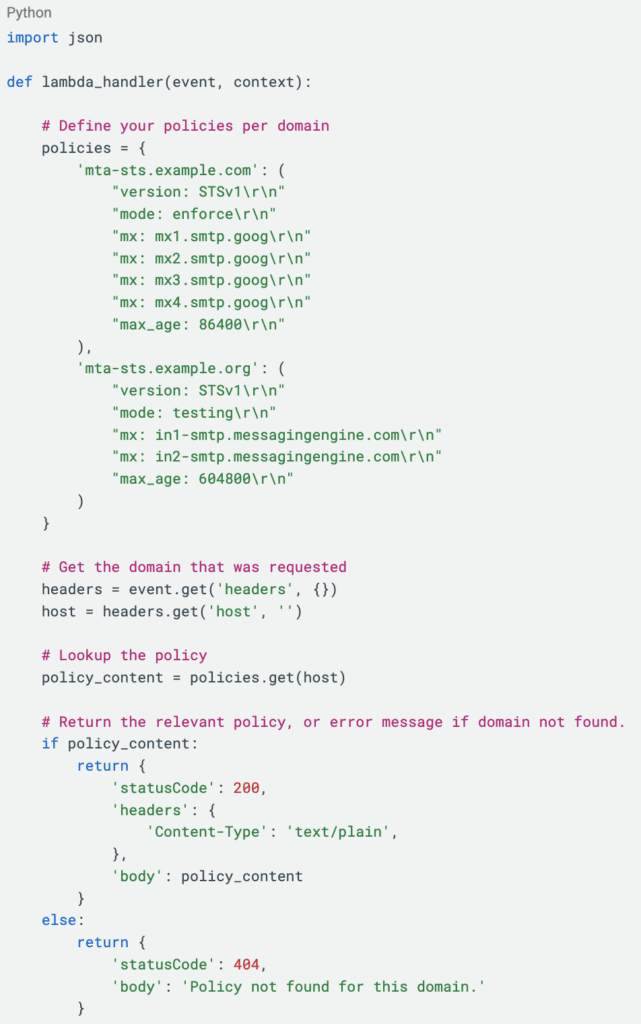
- Paste in the following code, modify the domains and policies to suit, then click Deploy
Step 2: Create certificates for your domains
The next step is to create domain certificates. Keep in mind that we are requesting certificates for the subdomain mta-sts. In this guide we are using mta-sts.example.com and mta-sts.example.org.
The certificates ensure that we can make the GET request over HTTPS.
- Navigate to the Certificate Manager console click Request.
- Select Request a public certificate and click Next.
- Enter the fully qualified domain name mta-sts.example.com. In this guide we will use DNS validation as the Validation Method and click Request.
- Create a CNAME record in your DNS using the provided CNAME name and CNAME value.
The status of your certificate should now change from pending validation to Amazon Issued. You can now repeat steps 1 to 4 for each of your domains.

Step 3: Create the API
Now we need to expose the Lambda function to the internet.
- Navigate to the API Gateway console and click Create API
- Click Build for the HTTP API
- Name your API e.g. mta-sts-handler
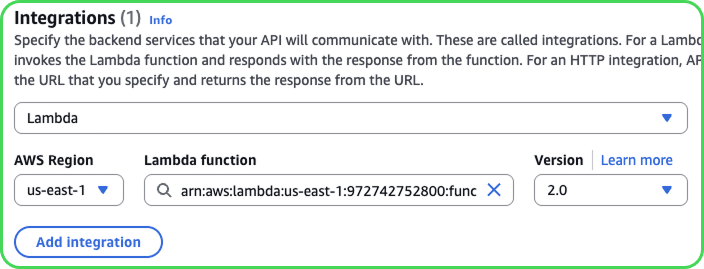
- Click Add integration, select Lambda, then select your lambda function and click Next
- Click Add Route with the following attributes and click Next:
- Method: GET
- Resource Path: /.well-known/mta-sts.txt
- Target: mta-sts-handler
- Leave the stage name of $default and click Next
- Review and click Create
Step 4: Assign the domain names to the API
We will now create our custom domain names on the API Gateway, assign them the certificates we created in Step 2, and map the domain name to the API we created in Step 3.
- Navigate to Custom domain names in the API Gateway menu and select Add domain name.
- Enter the domain name e.g mta-sts.example.com, Security policy to TLS 1.2, and select the matching certificate you created in Step 2 for ACM Certificate. Click Add domain name.
- You will be brought to a summary page of your custom domain. At the bottom click Configure API mappings.
- Click Add new mapping with the below attributes then click Save.
- API: mta-sts-handler
- Stage: $default
- Path: **leave blank
- Repeat this step for each of your domains.
Step 5: Configure your DNS
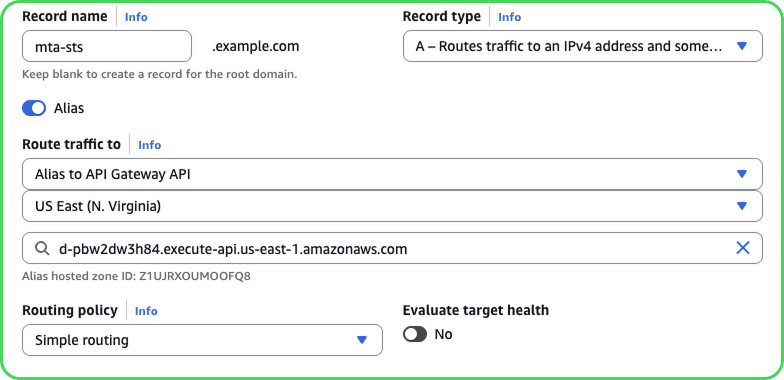
The remaining step is to point your domain to the API Gateway domain name. We will be using AWS Route 53 to complete this.
- Navigate to the Route 53 Console, select Hosted zones and choose your domain.
- Click Create record
- Set the following values:
- Record name: mta-sts
- Record type: A
- Alias: check on
- Route traffic to:
- Alias to API Gateway API,
your region,
API Gateway domain name
- Alias to API Gateway API,
- Click Create records
Confirm that your policy file is valid
Now that we have completed all steps, we need to check that everything is working as intended. There are two ways that you can do this.
The first option is to use our TLS & MTA-STS Inspector. This will not only ensure that your policy file is being served correctly, but it will also check to ensure that your TLS and MTA-STS records are valid. The TLS & MTA-STS Inspector is available only via our DMARC Management Platform through a subscription or no-cost trial.
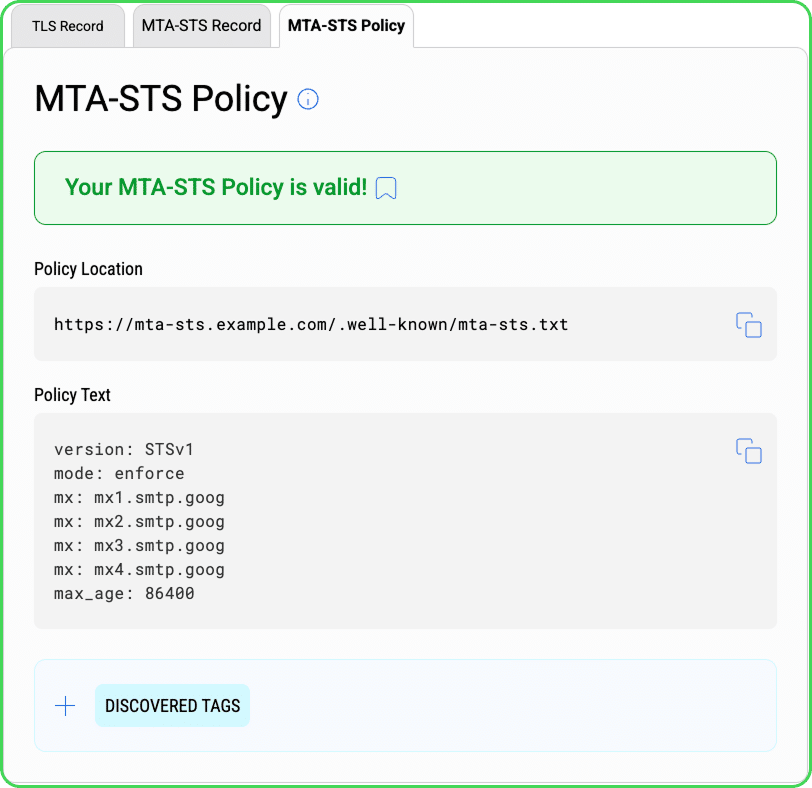
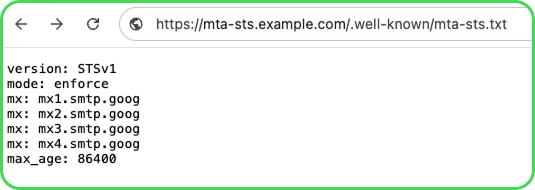
Alternatively you can type the URL in your browser. If everything is working as it should you will be presented with your Policy file, with no security warnings from your browser, as seen here:
How dmarcian can help
With a team of email security experts and a mission of making email and the internet more trustworthy. dmarcian is here to help assess an organization’s domain catalog and implement and manage email security for the long haul. You can register for a free trial, where our onboarding and support team will help you along the way.
Want to continue the conversation? Head over to the dmarcian Forum.